Fast Creative Generation
Grok Imagine Image is a strong fit for quick visual exploration, campaign concepts, thumbnails, social posts, and design drafts where speed and prompt responsiveness matter.
Generate and edit images with xAI Grok Imagine Image on Vidguru. Use a fast, versatile model for text-to-image, image-to-image, readable visual text, and rapid creative exploration. Try it free in Vidguru.
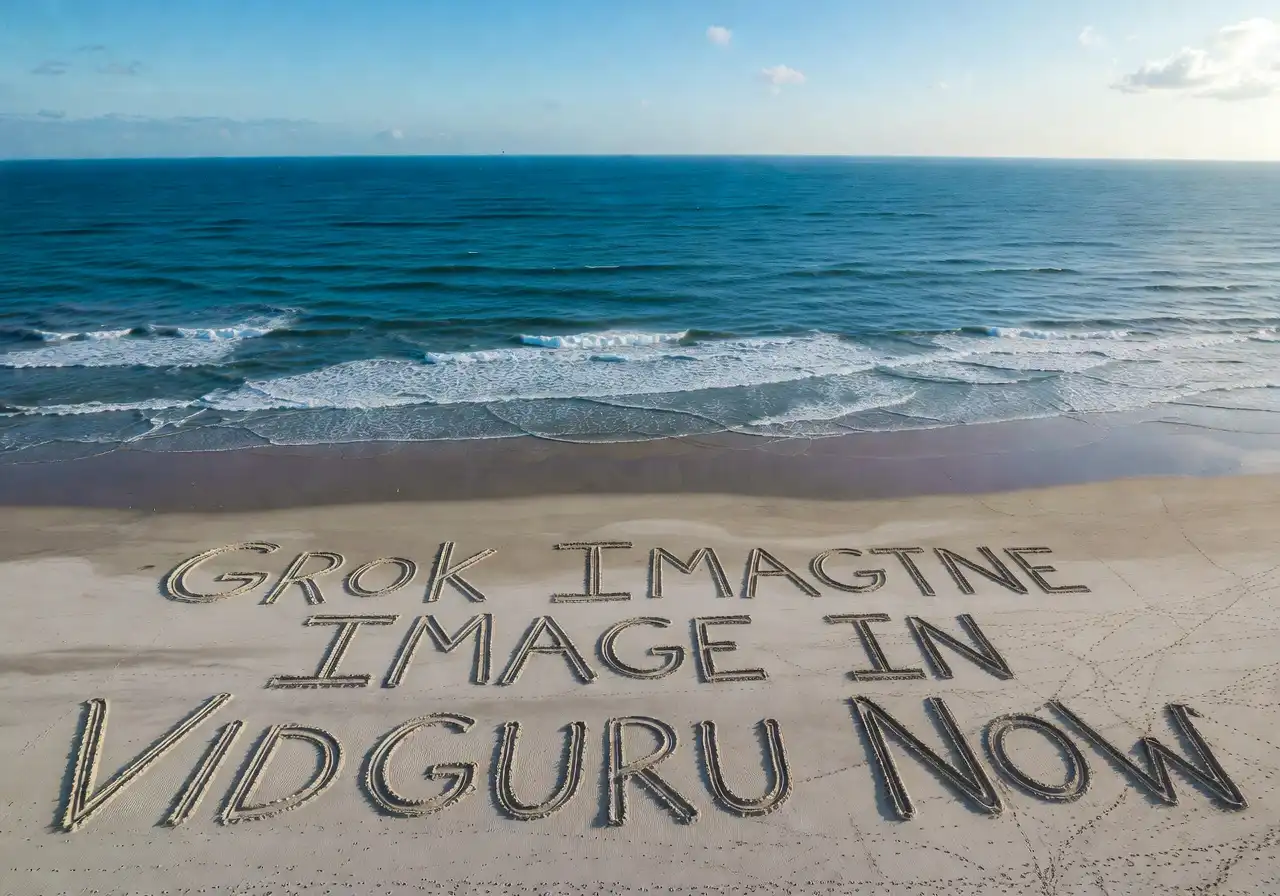
Grok Imagine Image is a strong fit for quick visual exploration, campaign concepts, thumbnails, social posts, and design drafts where speed and prompt responsiveness matter.
Vidguru supports Grok Imagine Image for both prompt-only image generation and editing with an uploaded reference image. Start from a written idea, or upload an existing visual and describe how it should change.
Grok Imagine Image is useful for visuals that need readable words inside the image, such as poster concepts, social graphics, banners, thumbnails, and product mockups.
Both text-to-image and image-to-image use a fixed 2 credit rule on Vidguru, making Grok Imagine Image easy to plan for repeated creative tests.
Grok Imagine Image is a good fit for fast poster concepts where composition, branding mood, and readable in-image text need to come together quickly.
Generate Image From Text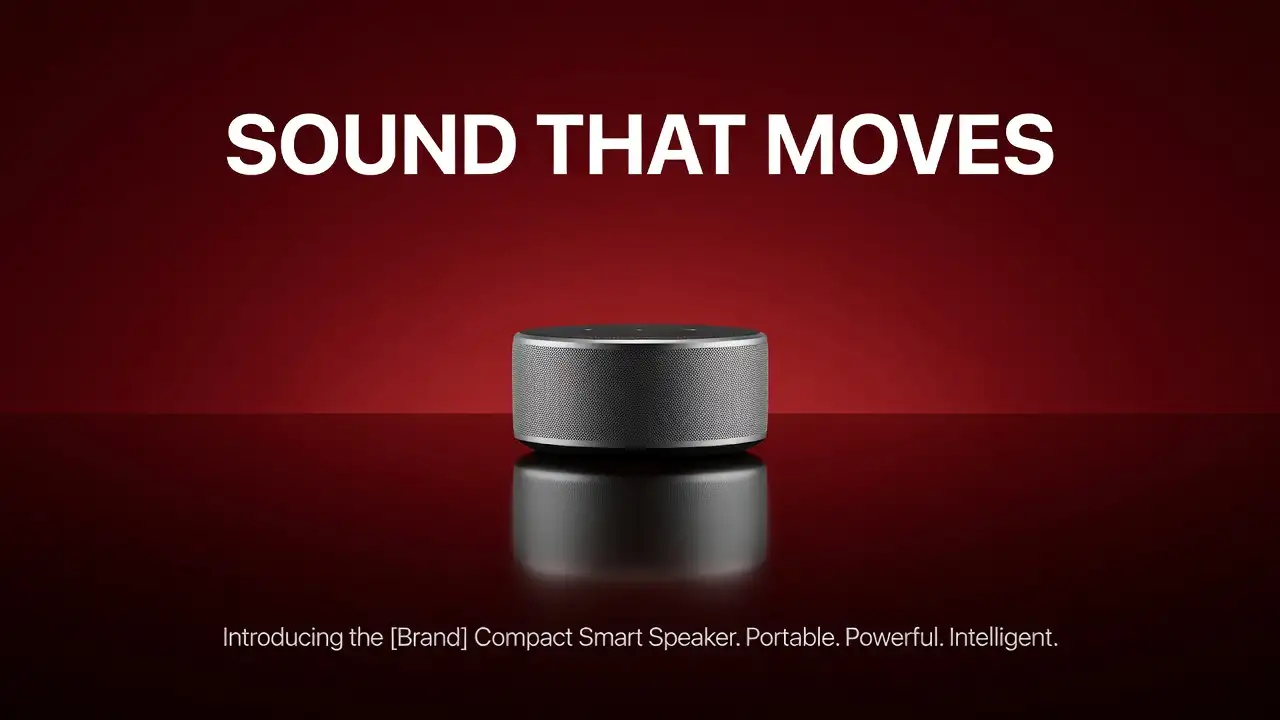
Grok Imagine Image is ideal for exploring stylized directions quickly across anime, cyberpunk, editorial, photorealistic, or graphic design looks.
Generate Image From Text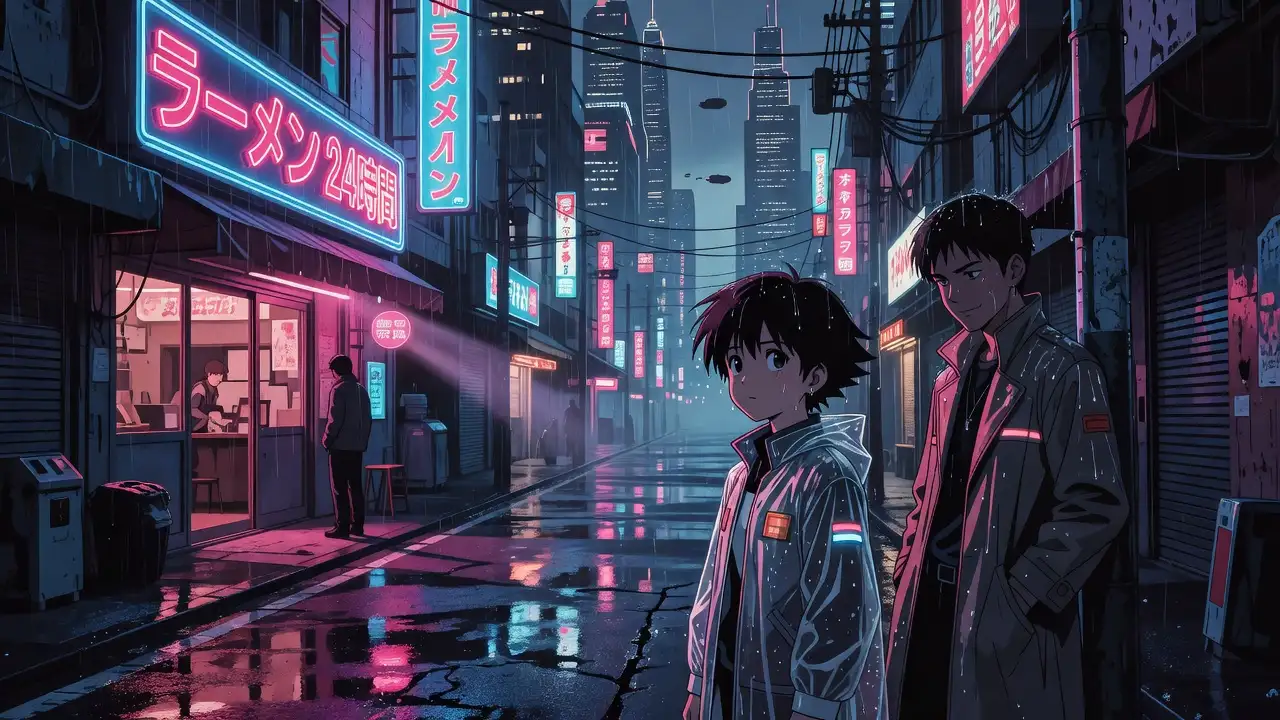
Grok Imagine Image can turn rough product photos into fast ad-style directions before investing in a higher-fidelity final render.
Generate Image From Image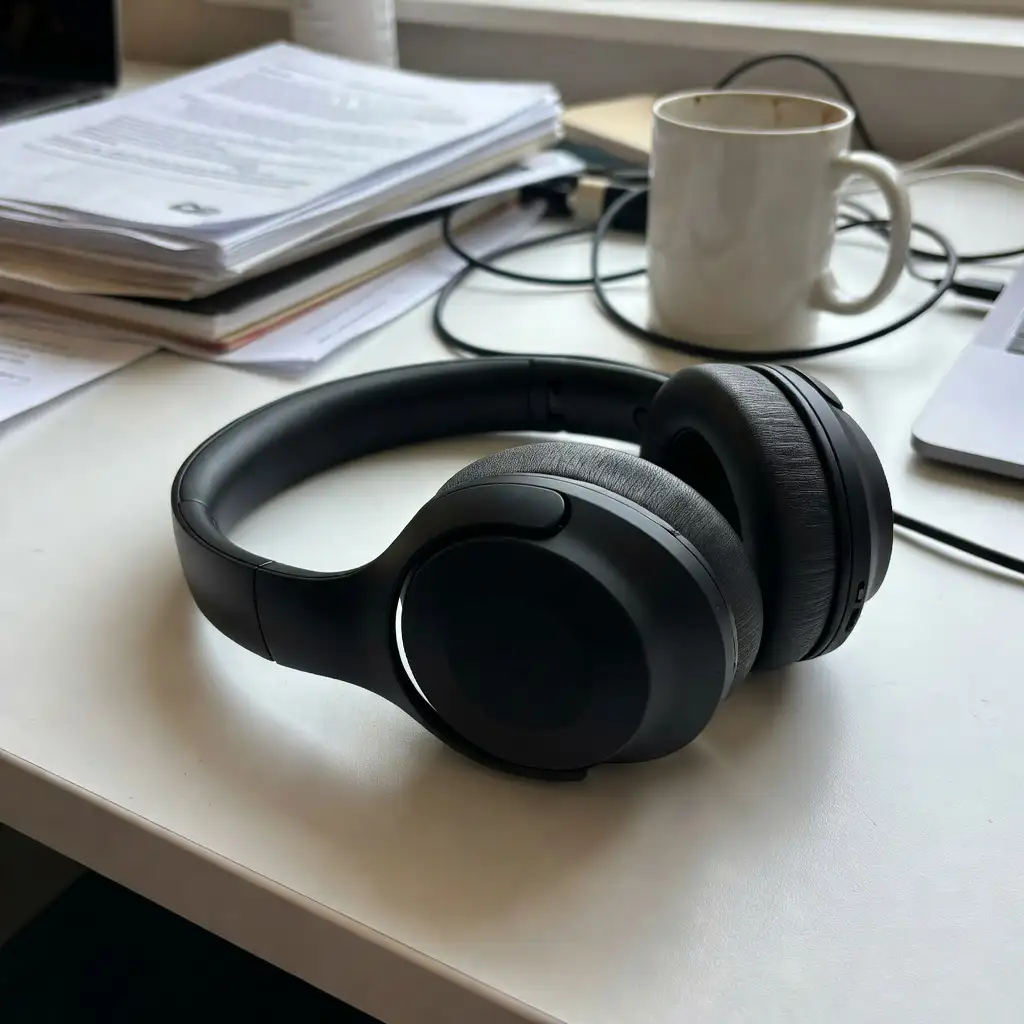 Before
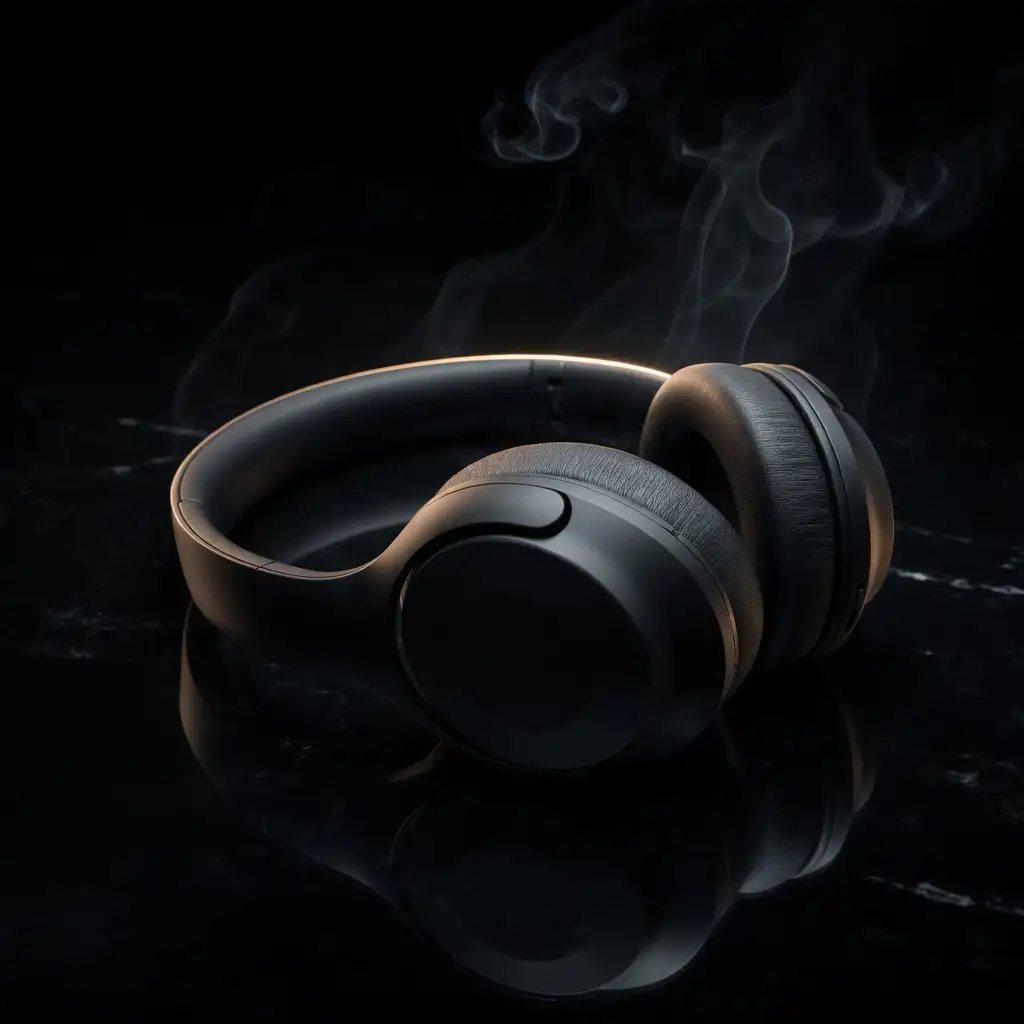 After
AfterImage-to-image is useful when the original subject should remain recognizable while the lighting, styling, and environment become more polished.
Generate Image From Image Before
 After
AfterGrok Imagine Image image-to-image supports one uploaded reference image on Vidguru. It is best for single-image edits, restyles, and transformations rather than multi-reference blending.
The standard Grok Imagine Image page does not expose 1K or 2K resolution settings on Vidguru. Use Grok Imagine Image Quality if you need those output controls.
For text-to-image, Vidguru supports 1:1, 16:9, 9:16, 4:3, and 3:4. Broader aspect ratio choices are available in Grok Imagine Image Quality.
For image-to-image, users upload one image and describe the edit. The workflow focuses on transforming the uploaded visual rather than choosing a separate aspect ratio.
Use Text to Image for new concepts from a prompt. Use Image to Image when you want to transform an uploaded visual while keeping important parts of the original.
Describe the main subject first, then style, lighting, background, color, layout, and any text that should appear in the image.
Choose 1:1, 16:9, 9:16, 4:3, or 3:4 based on where the image will be used.
Use Grok Imagine Image to test visual directions, poster text, product layouts, and edit ideas before moving the best result to a higher-fidelity model if needed.
Generate quick thumbnails, posters, short-form video covers, story visuals, and campaign concepts with a simple 2-credit workflow.
Explore ad layouts, product mockups, readable visual text, and brand directions before creating final polished assets.
Restyle simple product images, test backgrounds, and create fast visual concepts for listings, ads, and landing pages.
Move quickly across photorealistic, anime, cyberpunk, editorial, abstract, and graphic design styles without complex settings.
Grok Imagine Image is xAI's image generation and editing model for creating images from prompts or transforming an uploaded reference image.
Yes. Grok Imagine Image supports a free trial on Vidguru, so users can test both text-to-image and image-to-image workflows before moving into larger creative usage.
Yes. Vidguru supports both workflows. For text-to-image, use a prompt and aspect ratio. For image-to-image, upload one reference image and describe the edit you want.
Choose Grok Imagine Image for fast drafts, low-cost exploration, social concepts, and quick edits. Choose Grok Imagine Image Quality when you need sharper detail, higher-fidelity final assets, or 1K/2K output controls.
It combines fast prompt-based generation, practical image editing, strong style range, and good text rendering, which makes it useful for posters, ads, thumbnails, and early campaign concepts.
Vidguru supports one uploaded reference image for Grok Imagine Image image-to-image.
No. Vidguru does not fully mirror every official Grok model setting. The Vidguru page focuses on easier, more cost-effective controls for common text-to-image and image-to-image workflows.
Grok Imagine Image uses 2 credits for text-to-image and 2 credits for image-to-image.
Start with the subject, then add style, lighting, background, color, camera angle, layout, and any text that should appear in the image. For image-to-image, say what should stay the same before describing the changes.
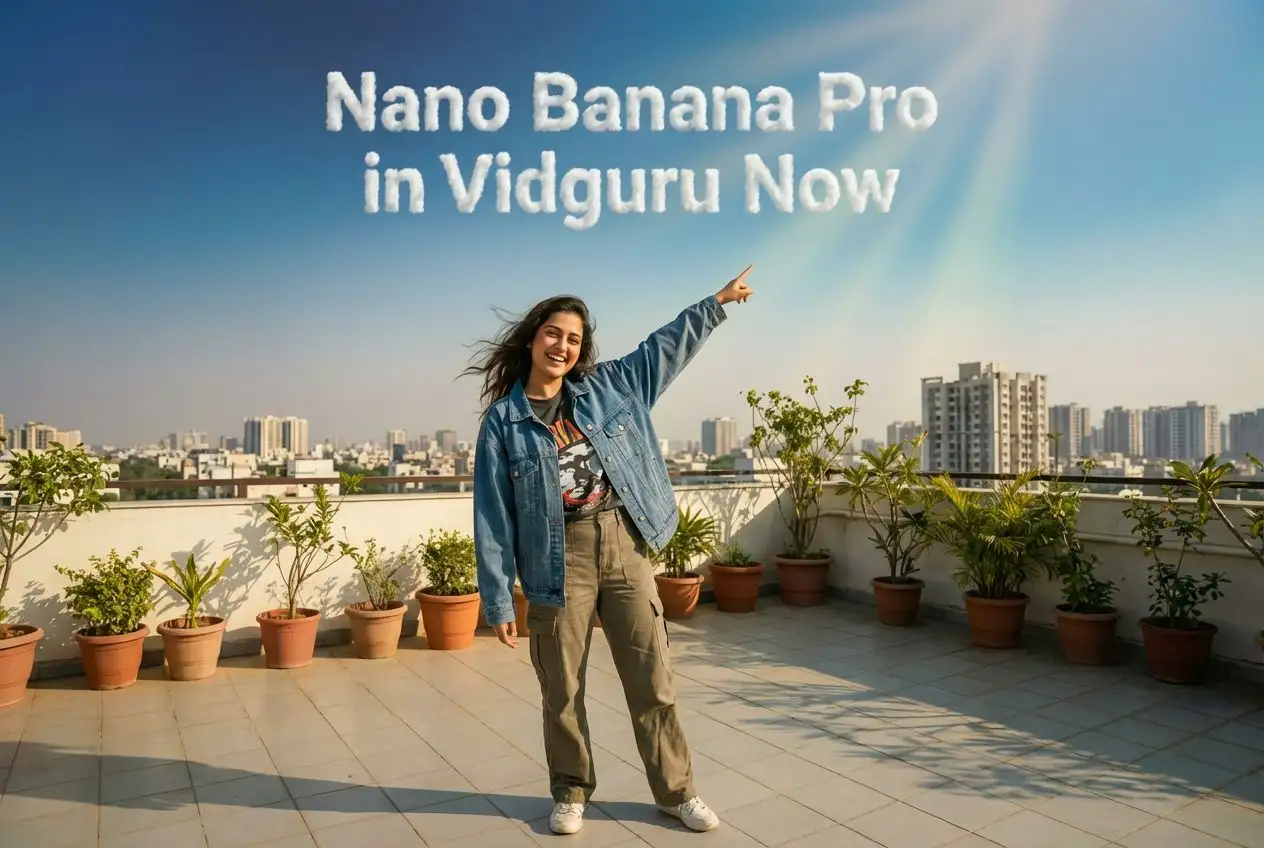
Nano Banana Pro delivers accurate multilingual text in 100+ languages, 4K studio‑quality output, and advanced image blending. Try it free on Vidguru.
Try Now Nano Banana Pro →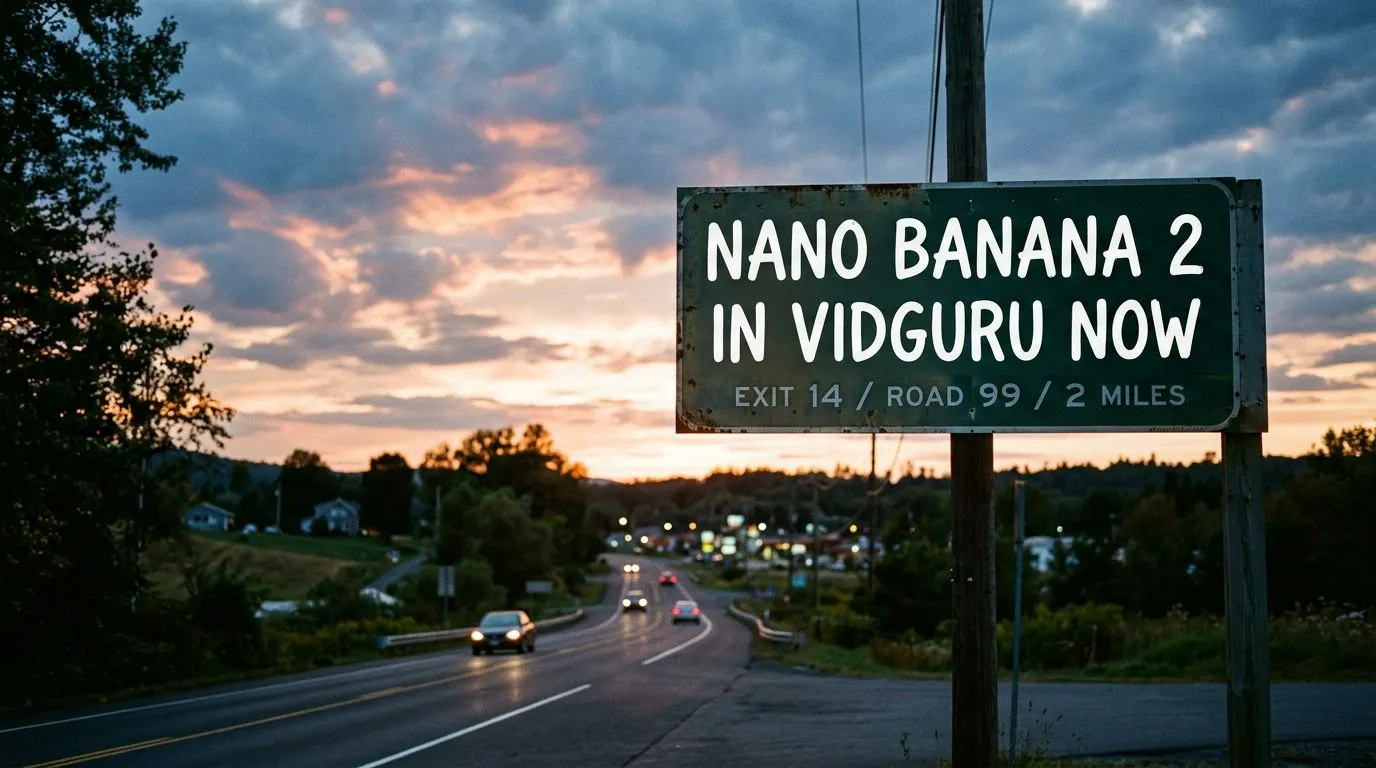
Google's Nano Banana 2 delivers Pro-level visual quality at Flash-level speeds. Grounded in real-time Google Search data. Try it free on Vidguru.
Try Now nano-banana-2 →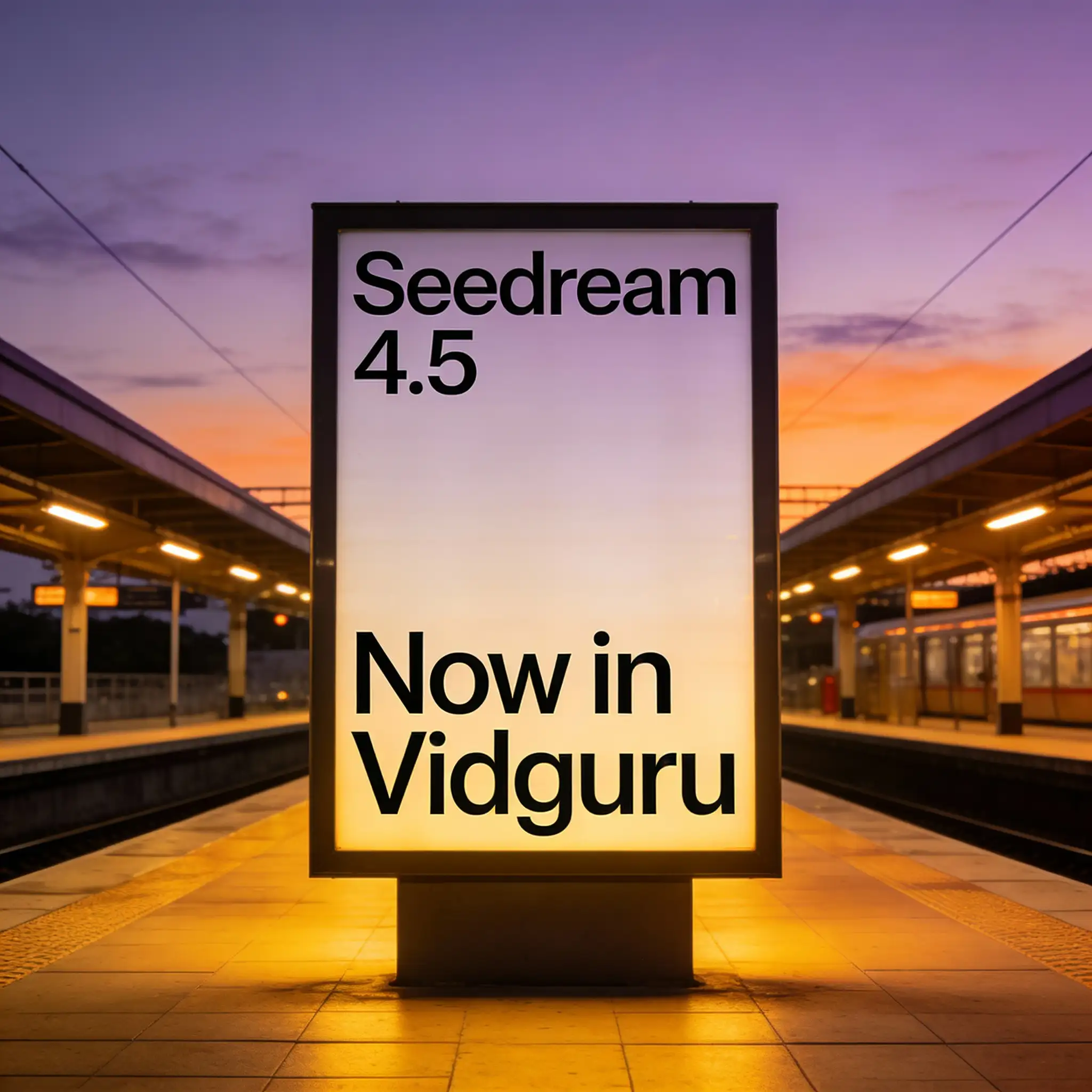
Seedream 4.5 delivers cinematic-quality visuals, industry-leading multi-image consistency, advanced spatial reasoning, and professional-grade editing capabilities. Try it free on Vidguru.
Try Now Seedream 4.5 →
ByteDance's Seedream 5.0 features multi-step reasoning and spatial physics for 3K visuals. Generate 10 variations at once. Try it free on Vidguru.
Try Now seedream-5 →
Create sharper, richer, more professional AI visuals with xAI's premium Grok model. Generate or edit in 1K or 2K. Try it free on Vidguru.
Try Now Grok Imagine Image Quality →
Create production-quality images from prompts or edit existing visuals with Black Forest Labs FLUX.2 Pro. Use text-to-image and image-to-image workflows on Vidguru with flexible aspect ratios and 1K, 2K, or 4K output. Try it free in Vidguru.
Try Now FLUX.2 Pro →
Generate high-fidelity images from prompts or edit existing visuals with Black Forest Labs FLUX.2 Max. Use text-to-image and image-to-image workflows on Vidguru with 1K, 2K, and 4K output. Try it free in Vidguru.
Try Now flux-2-max →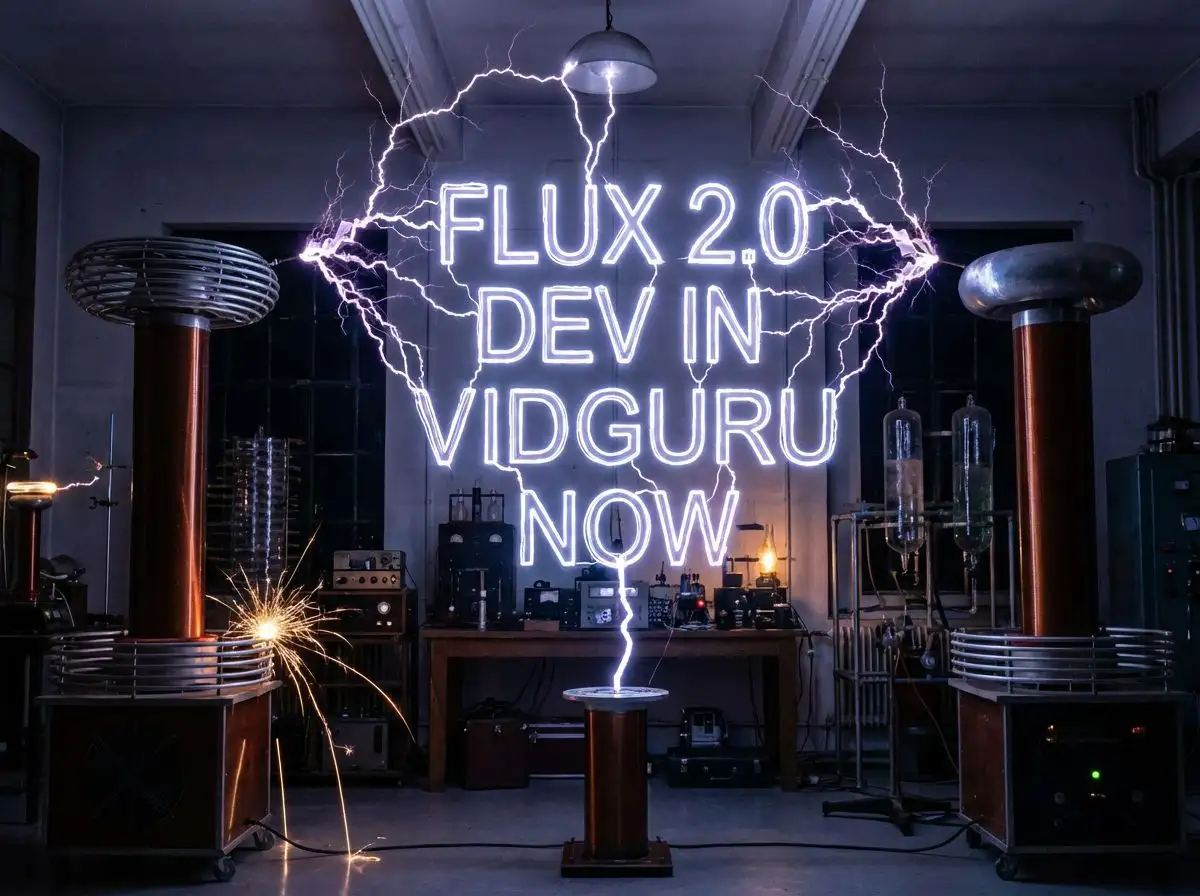
Generate and edit images with Black Forest Labs FLUX.2 Dev on Vidguru. Use an efficient open-weight FLUX.2 model for text-to-image, image-to-image, and fast creative iteration. Try it free in Vidguru.
Try Now flux-2-dev →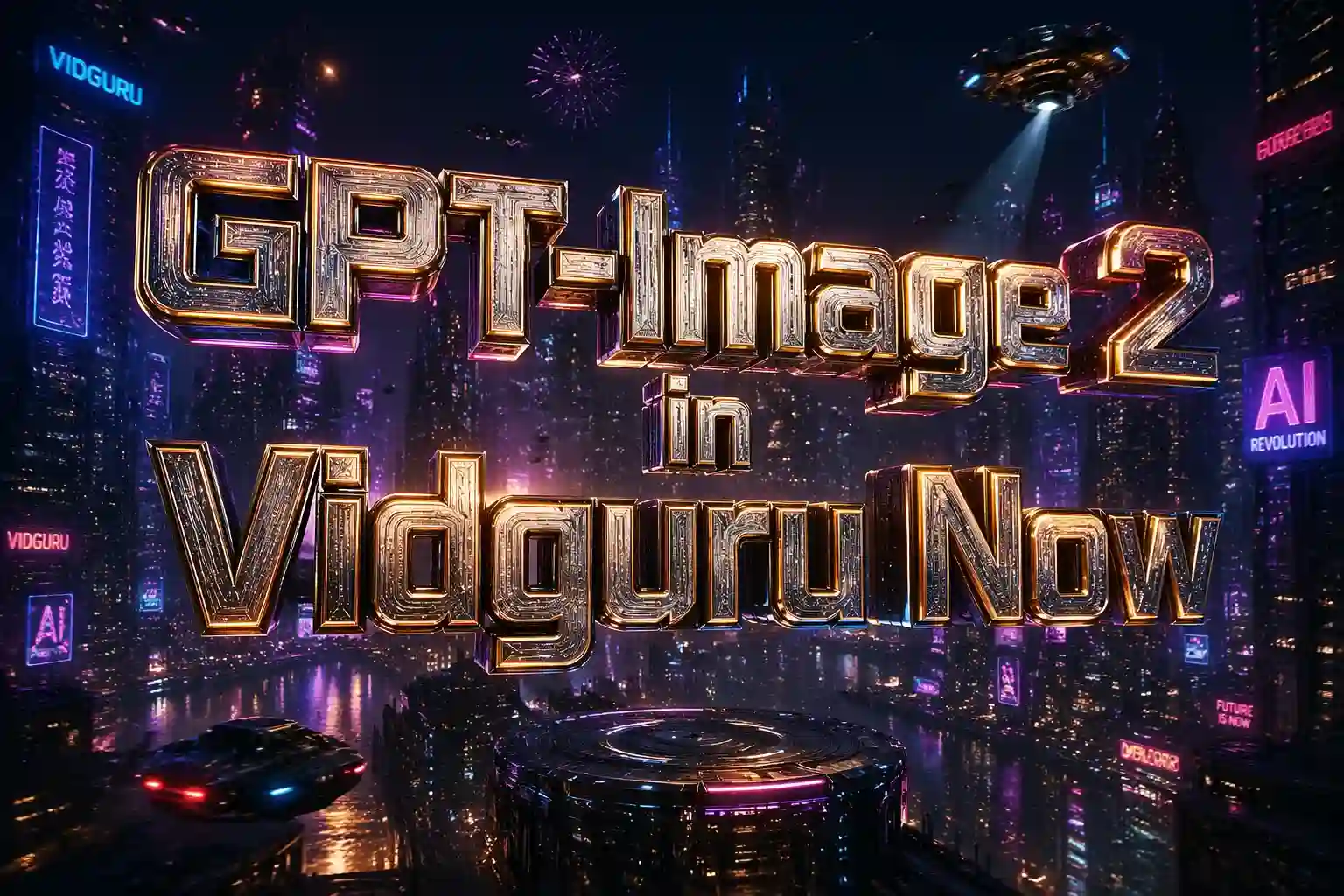
Unleash the power of the most intelligent AI image model ever built. GPT-Image-2 delivers flawless typography, complex logical reasoning, and cinematic realism in every frame. Try it for free on Vidguru.
Try Now GPT-Image-2 →
Bridge the gap between artificial intelligence and professional design with Recraft V4.1. Generate production-ready visuals with art direction, typography control, and high-resolution output. Try it free on Vidguru.
Try Now Recraft V4.1 →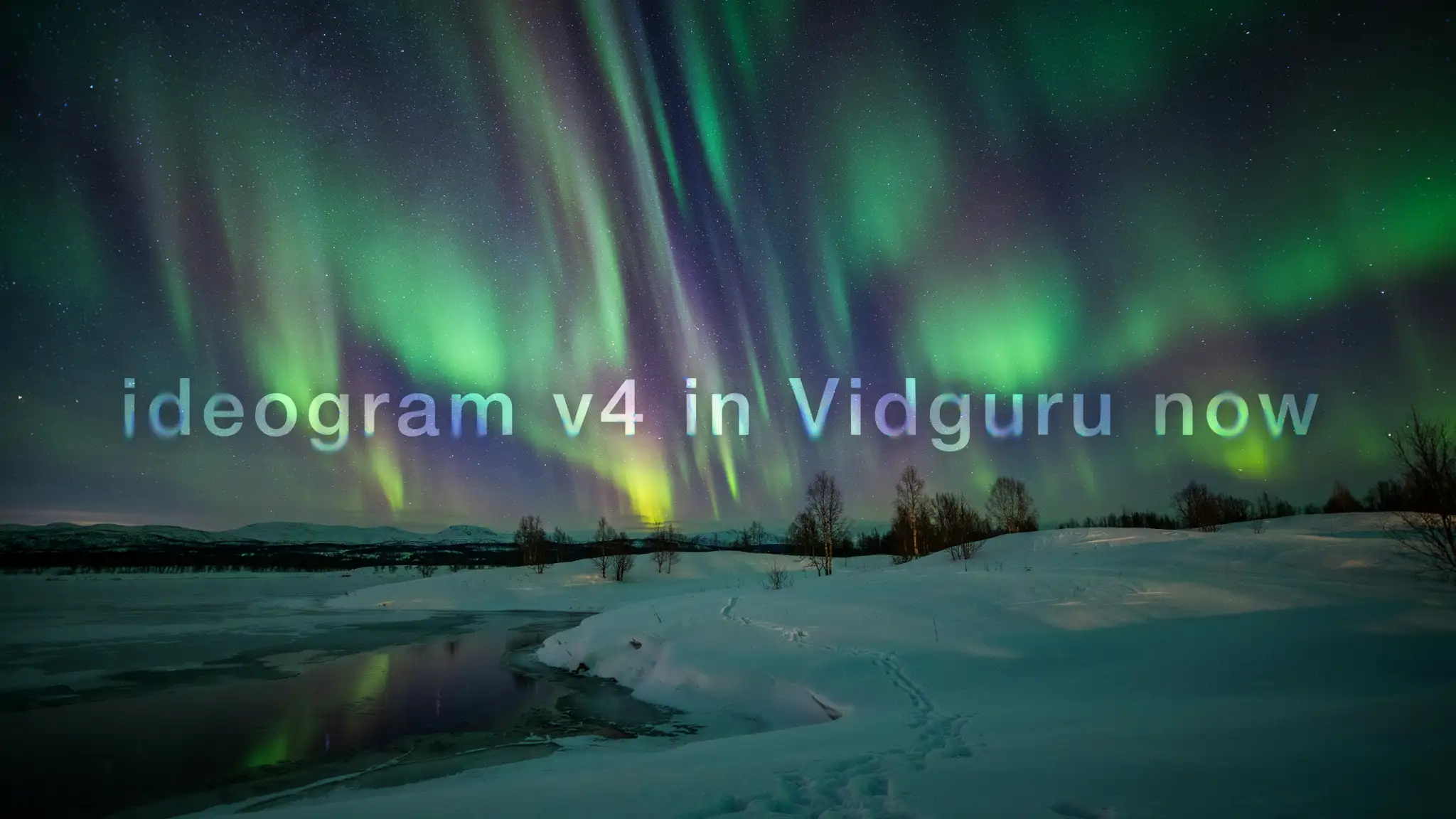
Create photorealistic and typography-rich images with Ideogram V4. Switch between Quality and Balanced. Try it free on Vidguru.
Try Now Ideogram V4 →